
QA across several accounts and Chrome profiles
To test an app as several different users, pair one Chrome profile per account with Agent Chrome and let the agent choose between them. list_browsers shows every paired profile, and any tool call takes browser: "Work" to pick one, or select_browser sets a default for the session.
An agent can then check what an admin sees, what a member sees and what a guest sees, in the same run.
The problem: one logged-in browser at a time
Testing permissions means switching users. You sign out, sign in as someone else, repeat the steps, and lose your place. Browser tools that connect to one browser leave you doing that by hand, and tools that start a clean browser need a login script for each role.
Chrome profiles solve this already. Each profile keeps its own cookies and logins, so "Admin", "Member" and "Personal" can all be signed in at once. Agent Chrome lets the agent reach all of them.
Set up your profiles
Do this once per Chrome profile:
- Switch to the profile in Chrome.
- Open
chrome://extensions, turn on Developer mode, click Load unpacked and choose~/.agentchrome/extension. The commandagentchrome extension --pathprints the path. - Run
agentchrome pairin your terminal for a new single-use code, valid for 15 minutes. - Click the Agent Chrome icon, paste the code and press Connect.
Each profile appears as its own browser. Name them clearly, such as "Admin" and "Member", because you will use the names in prompts. For more detail, see Connect several Chrome profiles.
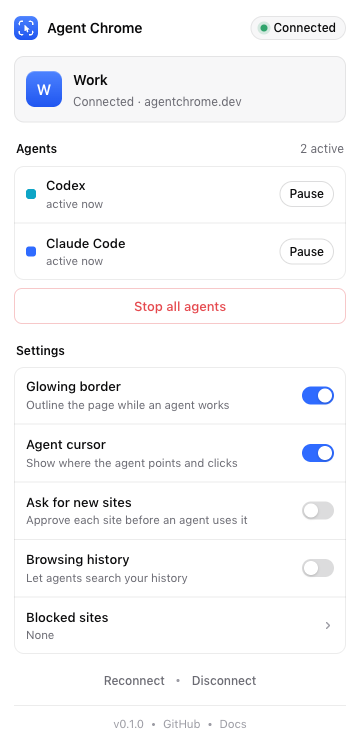
The popup in each profile shows its connection and the agent sessions working in it.
Walkthrough: compare what two roles see
Ask your agent:
Use agentchrome. In the "Admin" profile and the "Member" profile, open https://staging.example.com/billing. Tell me what each one sees, and whether the Member can reach the "Delete workspace" button.
The agent will call:
list_browsersto see which profiles are paired and online. Profiles that are closed show as offline.navigatewithurl: "https://staging.example.com/billing"andbrowser: "Admin".get_page_textandfindwithquery: "Delete workspace button", both withbrowser: "Admin".- The same three calls with
browser: "Member". computerwithaction: "screenshot"for each profile, so you can compare them.
Each call carries browser, so the agent does not need a default. If you would rather set one, select_browser with browser: "Member" makes it the default for the rest of the session. A call that names a browser still wins.
The agent gets a separate tab group in each profile, and the tab group is named after the agent.
Run a permission matrix
For bigger checks, give the agent a table:
For each of Admin, Member and Guest, visit /settings, /billing and /admin. Record whether the page loads, redirects or shows an error. Return a table.
The agent loops through the profiles with navigate, reads the result (HTTP errors such as 403 and 404 are reported by navigate), and builds the table. Ask for a screenshot with save: true on failures, and each one returns a download link.
Combine it with other agents
Two agents can work at once. Each MCP session gets its own tab group, so Claude Code can test in "Admin" while Codex checks a page in "Personal". The popup lists each session with Pause, Resume, and Stop all.
Tips and limits
- Use test accounts. An agent with a logged-in browser can do what that user can, so do not use an admin account with real production data unless you must.
- Name profiles for roles. "Work" and "Personal" are fine for people, but "Admin" and "Member" make prompts unambiguous.
- The profile must be open.
list_browsersshows offline profiles, and an offline one cannot be driven until Chrome is running with the extension. - Remove a profile when you are done.
agentchrome revoke <browser-id>removes a paired profile, and it disconnects immediately. Revoking is per profile. - Pages can contain prompt injection. Review what the agent did when a page includes untrusted text.
- Chrome only, and the extension is loaded unpacked in each profile.
Related pages: Let an AI agent work on sites you are logged into, Test your web app with an AI agent, Security and privacy, and Agent Chrome vs Claude in Chrome.
Frequently asked questions
Can an AI agent use more than one Chrome profile?
Yes. Pair each profile with Agent Chrome, and list_browsers lists them with online status. The agent picks one per call with browser: "Work", or sets a default with select_browser.
How do I add another Chrome profile?
Switch to that profile, load the same extension folder, and run agentchrome pair for a new code. Paste the code in the extension popup. The new profile appears as its own browser.
Can I test as an admin and a normal user at the same time?
Yes. Keep each role in its own profile and tell the agent to run the same steps in both. Each call names its profile, so the sessions do not mix.
What happens if a profile is closed?
list_browsers shows it as offline. The agent cannot drive it until you open Chrome in that profile with the extension connected.
How do I disconnect a profile?
Run agentchrome revoke <browser-id>. The profile disconnects at once, and its device token stops working.
Try Agent Chrome
One command sets up every agent on your machine. Or add https://agentchrome.dev/mcp as a connector in Claude or ChatGPT.