
Record a browser video or demo with an AI agent
You can ask an AI agent to record a browser video by telling it to call the record tool in Agent Chrome. The agent starts a recording, performs the steps in your Chrome, stops, and hands you a link to an MP4 or WebM clip.
By default the clip looks like a person using the page: a normal cursor, and no blue border, status pill or agent name tag.
The problem: demos take longer than the feature
Recording a short product demo or a bug report usually means opening a screen recorder, rehearsing the clicks, and redoing the take when you miss one. Agent tools that can drive a browser often show their own overlays in the capture, which makes the clip look like a test run instead of a demo.
With Agent Chrome the agent does the clicking and the recording in one session. The agent's usual indicators are for you while it works, and they are left out of the clip.
What you get
| Tool | Output | Good for |
|---|---|---|
record |
MP4 or WebM clip, returned as a download URL (cloud) or a file path (local) | Demos, bug reports, pull request proof. action: "scroll" returns a smooth scrolling video of a whole page in one call |
gif_creator |
Animated GIF, returned inline | Short loops for READMEs and docs |
screenshot |
JPEG or PNG, viewport or one long full-page image (also inside scrolling panels); save: true returns a link |
Still images |
The recording limit is 10 minutes. On the hosted server the files are kept on R2 for 7 days. In local mode they are saved to ~/.agentchrome/artifacts.
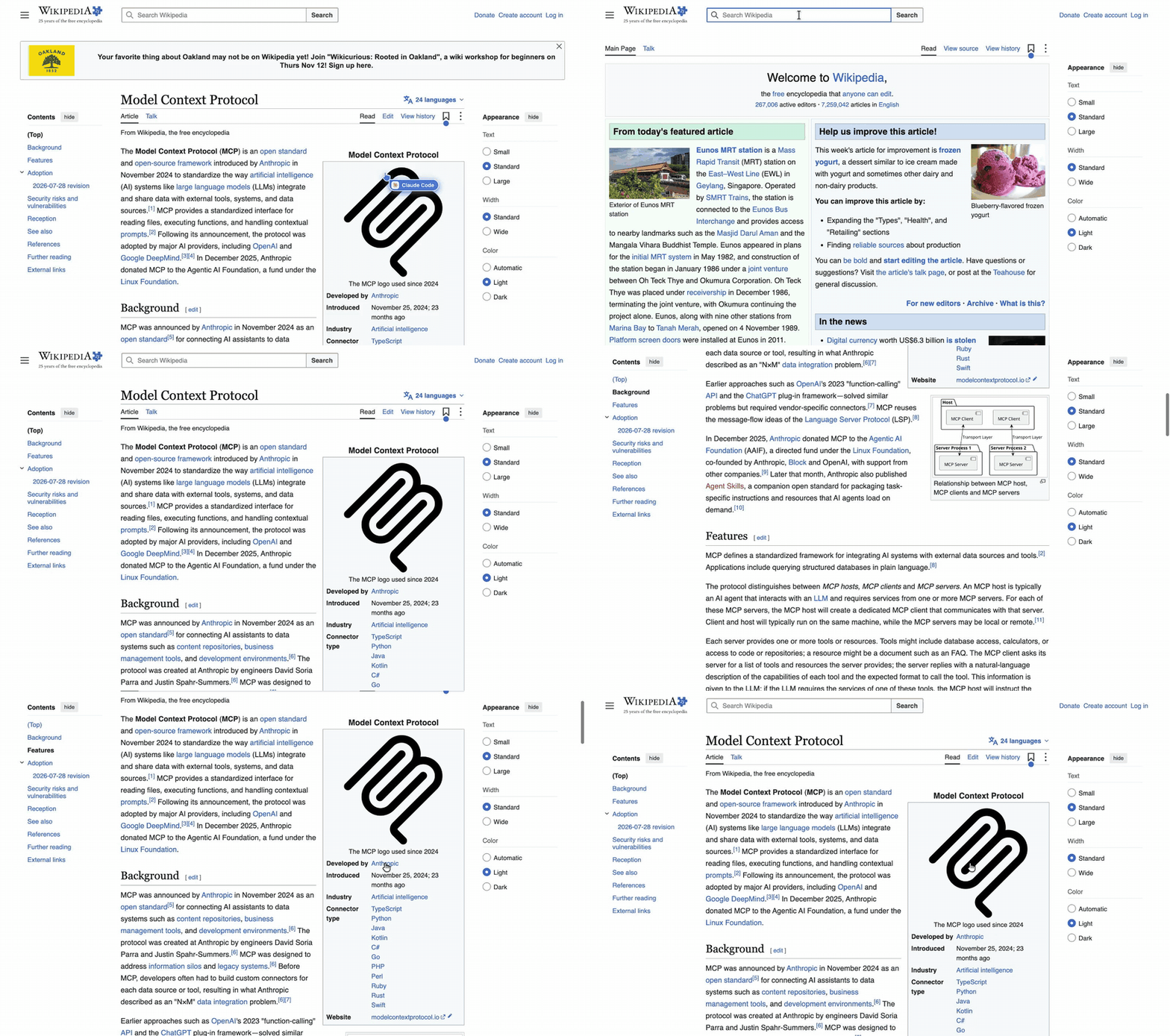
That clip was recorded by the extension itself.
Walkthrough: record a product demo
Ask your agent:
Use agentchrome to record a demo. Open https://news.ycombinator.com, scroll the front page slowly, open the first story, then stop the recording and give me the link.
The agent will call these tools:
tabs_contextto get its tab group and a valid tab.navigatewithurl: "https://news.ycombinator.com"to load the page before the clip starts.recordwithaction: "start",cursor: "natural",fps: 15andshowClicks: true. The toolbar icon shows REC while the recording runs.computerwithaction: "scroll",scroll_direction: "down"andscroll_amount: 3to scroll.findwithquery: "first story link"to get a ref, thencomputerwithaction: "left_click"and thatref.wait_forwithurlIncludesortextso the clip does not cut off mid-load.recordwithaction: "stop". The result gives the recorded length and the URL of the file.
Choose how the cursor looks
The cursor parameter on record has three values:
natural(the default): a normal arrow that becomes a hand over links and an I-beam over text. No border, pill or name tag.agent: the agent's own cursor with its name and logo, plus the blue border and pill. Use this for a clip that shows "an AI is working here".hidden: no cursor at all.
Set showClicks: true to draw a soft ripple where each click lands. It is off by default.
Other options on record
format:mp4(default when Chrome supports it) orwebm.fps: frames per second, default 15.filename: a name for the file.download: true: also saves the file in your Downloads folder.action: "status": reports progress of a running recording.
Make a GIF instead
For a short loop to embed in a README, ask:
Record a GIF of the dashboard filter being changed, then export it.
The agent calls gif_creator with action: "start_recording", does the steps, then action: "stop_recording" and action: "export". The GIF comes back inline. gif_creator takes the same cursor and showClicks options. action: "clear" throws away a bad take.

This clip uses cursor: "agent", which is what you see live while any agent works: the border, the pill with a Stop button, and the agent's cursor.
Tips for good takes
- Navigate before you record. Load the first page, then start the recording, so the clip opens on the page instead of a blank tab.
- Set the window size first.
resize_windowwithwidth: 1280andheight: 720gives a consistent frame. - Tell the agent the pace. "Scroll slowly" and "wait two seconds on each page" give the agent
computeractions withaction: "wait"andduration: 2. - Use
wait_for, not guesses. It returns as soon as the text, selector or URL appears. - Re-take freely. If a click misses, stop and ask for another take.
Limits
- The clip is of one tab, up to 10 minutes.
- Hosted files are deleted after 7 days. Download or save what you want to keep, for example with
download: true. - Chrome shows a "started debugging this browser" bar while the extension is attached. The bar is Chrome's, and the agent cannot hide it.
- The extension cannot record
chrome://pages or the Web Store. - Chrome only for now, and the extension is loaded unpacked.
For all capture options, see Record screenshots, MP4 clips and GIFs. To test a flow and keep a recording as proof, see Test your web app with an AI agent. If you record a site you are signed in to, read Let an AI agent work on sites you are logged into first so you know what the clip will show.
Frequently asked questions
Can an AI agent record a video of my browser?
Yes. With Agent Chrome, an agent such as Claude Code or Codex calls record with action: "start", performs the steps, and calls record with action: "stop". It returns a link to an MP4 or WebM file.
Will the recording show the AI cursor and blue border?
Not by default. The default cursor: "natural" leaves out the border, status pill and name tag and draws a normal cursor. Pass cursor: "agent" if you want the indicators in the clip, or cursor: "hidden" for no cursor.
How long can a recording be?
Up to 10 minutes. For longer demos, record in parts.
Where does the video file go?
On the hosted server it is stored on R2 and the link works for 7 days. In local mode it is a file under ~/.agentchrome/artifacts. Pass download: true to also save it to your Downloads folder.
Can I get a GIF instead of an MP4?
Yes. Use gif_creator with action: "start_recording", then "stop_recording" and "export". The GIF is returned inline.
Does this work from Claude.ai or ChatGPT?
You can connect Agent Chrome as a custom connector. See Use Agent Chrome as a Claude or ChatGPT connector.
Try Agent Chrome
One command sets up every agent on your machine. Or add https://agentchrome.dev/mcp as a connector in Claude or ChatGPT.